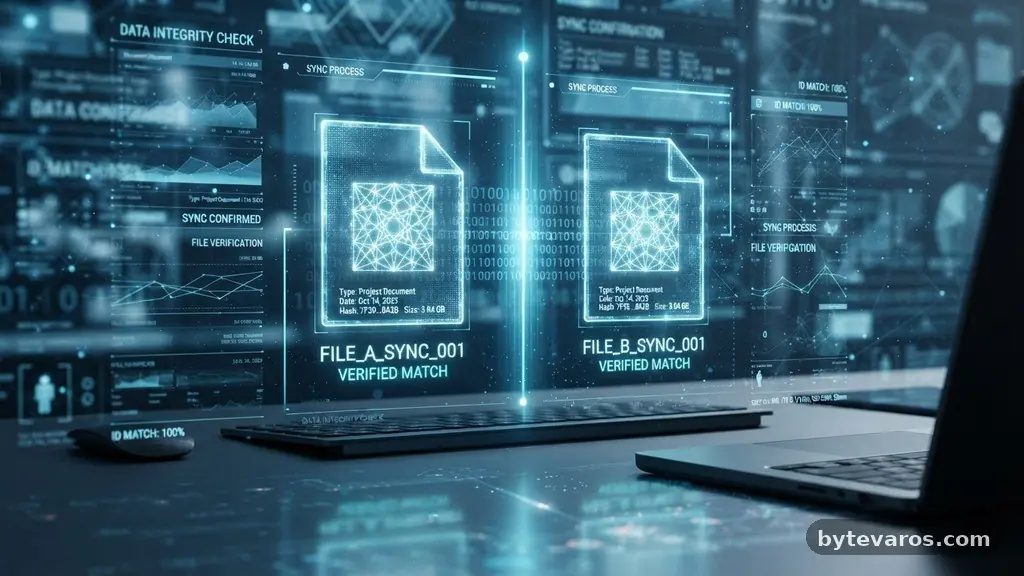
Managing your digital storage effectively often requires a practical guide to finding duplicate files without deleting important copies that serve different purposes. Digital clutter builds up quickly, and automated cleanup tools often lack the nuance to distinguish between a functional backup and a redundant waste of space.
By understanding how to identify files based on unique digital signatures rather than just names or sizes, you can reclaim significant storage space while keeping your data safe. This article provides a clear, methodical approach to auditing your drives so you can organize your archives with total peace of mind.
Understanding Digital Signatures
The most reliable way to identify identical content is through a process called file deduplication, which uses mathematical fingerprints. When you look at a file, your operating system sees a name, a size, and a date, but these are easily manipulated. A computer, however, can generate a unique hash for every file using checksum algorithms.
These algorithms, such as MD5 hashing or the more modern and secure SHA-256, scan the actual binary data within a file. If two files have the exact same hash, they contain the identical sequence of bytes. This method ensures that you are only flagging files that are true clones, regardless of whether they have different filenames or reside in different folders.
The Risks of Relying on Metadata
Many users try to find duplicates by sorting by file name or size, but this is a dangerous shortcut. Metadata, including creation dates and tags, can change simply by moving a file or opening it in a different program. A document might have the same name as another but contain entirely different text, while a photo might have a different name but be the exact same image.
If you rely on simple file system properties, you risk deleting critical assets that just happen to share a label. For instance, a configuration file for a piece of software and a text file containing your notes might share a name but serve vital, distinct functions. Always prioritize content-based verification over surface-level attributes to maintain your file system integrity.
Tools for Safe Scanning
When you decide to audit your storage, you need software that supports bit-by-bit comparison. This approach is the gold standard because it reads every single bit of data to confirm identity. Many modern tools offer a recursive search, which allows them to dive deep into nested folders and subdirectories without missing hidden caches.
Look for a cross-platform utility that can handle both internal drives and an external hard drive simultaneously. Some tools provide a preview window where you can see the file path, the date, and even a thumbnail of the content before you decide to act. This visual verification step is your final layer of protection against accidental deletion.
Managing Cloud Storage Synchronization
Cloud storage synchronization adds a layer of complexity because these services often create their own versions of files. If you have a local folder synced to a service like Google Drive or Dropbox, you might see duplicates caused by conflict resolution. These are not always redundant; sometimes, they represent different versions of a document that the sync engine could not merge.
Before you delete anything, check the modification history provided by your cloud provider. You can find detailed information on how these services handle data on the official Google Drive help center. Understanding how your cloud provider manages versioning prevents you from wiping out a file that the system considers “active” even if it looks like a duplicate to you.
Distinguishing Between Hard Links and Symlinks
Advanced users often use symlinks or hard links to manage storage, and these can confuse basic cleanup tools. A hard link points directly to the data on the disk, meaning the file appears in two places but only takes up space once. If you delete one, the data remains as long as the other link exists.
A symlink, or symbolic link, is essentially a shortcut to another file. Deleting a symlink does not delete the target, but it might break a program that relies on that specific path to function. Always ensure your scanning software is configured to ignore or clearly identify these system-level links before you initiate a bulk cleanup.
Comparing Manual vs Automated Approaches
The choice between manual inspection and automated software depends on the scale of your data. If you are cleaning a single folder, manual checking is often safer and more precise. However, for a multi-terabyte drive, an automated tool is necessary to handle the volume of data efficiently.
| Method | Time Requirement | Risk of Error | Best For |
|---|---|---|---|
| Manual Sorting | High | Low | Small Project Folders |
| Checksum Tool | Low | Medium | Massive Photo Libraries |
| System Utilities | Medium | High |
Preventing False Positives
Even with the best tools, you must be wary of false positives. A false positive occurs when software identifies two files as identical because their hashes match, but the files serve different roles in your software environment. For example, some applications use identical dummy files as placeholders for data that will be filled in later.
To avoid this, always set your software to exclude system directories and application data folders from the scan. You should also whitelist specific file extensions that are known to be used as system dependencies. By creating a safe list, you ensure that the cleanup process focuses only on your personal documents, photos, and media.
Best Practices for Data Safety
Before you commit to deleting anything, perform a full backup of your entire drive. Even when you are confident that you have identified true duplicates, a hardware failure or a software glitch during the deletion process can cause data loss. A simple external backup ensures that you can restore your files if you accidentally remove something important.
* Always perform a backup before running a mass deduplication script.
* Review the scan results in a list format rather than clicking “delete all.”
* Check the file paths of all duplicates to see if they reside in different system folders.
* Keep “originals” in a dedicated folder structure to avoid confusion.
* Use a tool that allows you to move files to a temporary “quarantine” folder first.
Frequently Asked Questions
Does a checksum match guarantee that two files are identical?
Yes, if two files produce the same SHA-256 or MD5 hash, they are bit-for-bit identical. The probability of two different files producing the same hash is mathematically negligible.
Can I safely delete duplicates found in my Windows or System folders?
No, you should never delete files within your system or program directories. These files often rely on specific paths, and removing them can break your operating system or installed applications.
What happens if I delete a hard link to a file?
Deleting one hard link simply reduces the reference count for that specific file on the disk. The data remains accessible through the remaining hard links, so you do not lose the actual file content.
How do I know if a duplicate is actually a backup I need?
Check the file path and the modification date. If the duplicate is in a folder labeled “Archive” or “Backup,” it is likely intentional, and you should keep it even if it is an exact copy of a working file.
Are there free tools that perform reliable hash-based scanning?
Yes, several open-source utilities are available that perform checksum-based scanning without charging fees. Look for projects on reputable platforms that have active community support and regular updates.
Conclusion
Finding redundant data requires a careful balance between automated efficiency and manual oversight. By utilizing checksum algorithms and verifying file paths, you can confidently clear space while preserving the integrity of your important documents. This practical guide to finding duplicate files without deleting important copies serves as a foundation for your digital hygiene.
Remember that your goal is to reclaim space, not to rush the process and risk losing valuable work. Take the time to audit your results, maintain regular backups, and treat your digital archives with the same care you would apply to physical files. With these habits, you will keep your storage organized and your system running smoothly for years to come.