Finding that your computer reverts to default configurations every time you log back in is incredibly frustrating. When you discover why some Windows settings reset after every restart and how to fix them, you reclaim control over your digital environment and stop wasting time re-adjusting preferences. This issue often stems from corrupted system files, sync conflicts, or power management features that prevent your configuration from saving correctly.
Understanding the root cause allows you to implement permanent solutions rather than relying on temporary workarounds. By following the troubleshooting steps outlined below, you can ensure your desktop, power, and security preferences remain exactly where you left them.
The Role of Fast Startup in Configuration Persistence
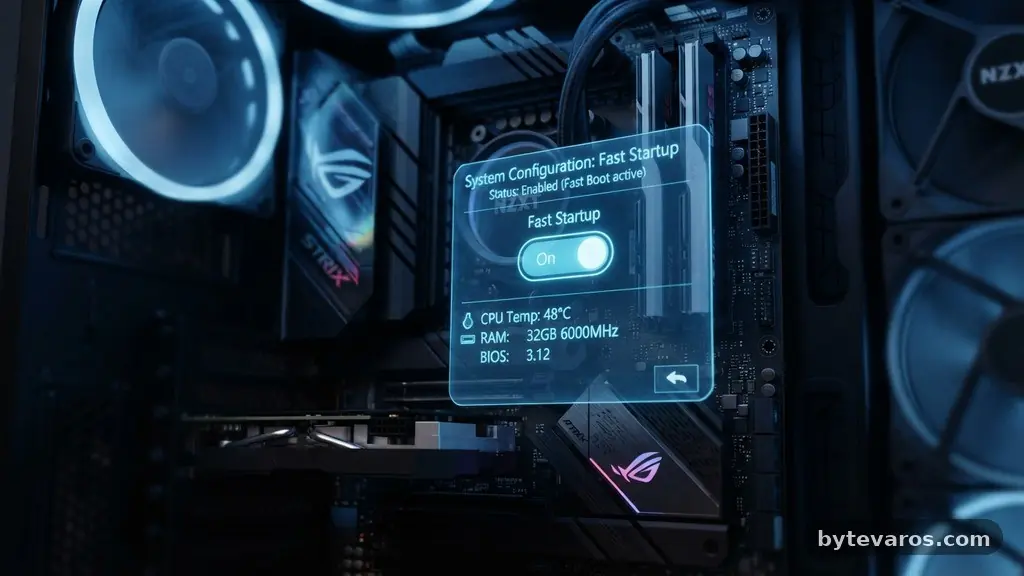
Many users encounter persistent reset issues because of the Windows Fast Startup feature. This power-management setting is designed to speed up boot times by saving the state of the kernel to a hibernation file.
While efficient, it can sometimes prevent your system from writing new settings to the disk during a standard shutdown. When you shut down, Windows effectively “freezes” its current state, potentially ignoring the changes you made in the last session.
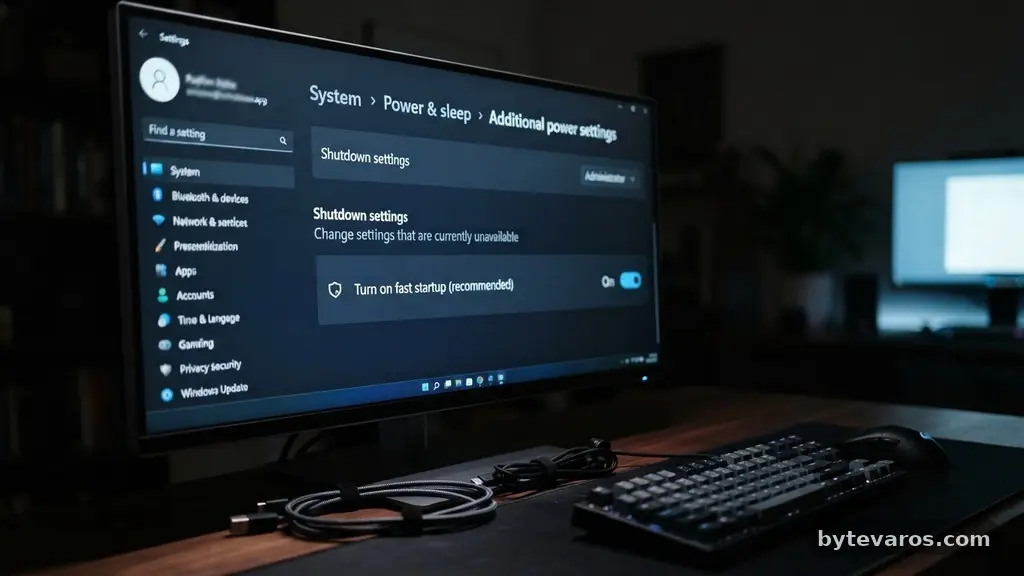
To test if this is the culprit, you should temporarily disable the feature through the Control Panel. Navigate to Hardware and Sound, then Power Options, and select “Choose what the power buttons do.” You will likely need to click “Change settings that are currently unavailable” to unlock the greyed-out options.
Uncheck “Turn on fast startup” and save your changes. If your settings begin to stick after a reboot, you have identified the primary bottleneck.
Identifying Corrupted System Files
System file integrity is essential for Windows to maintain your user preferences. If core system files responsible for saving registry data or configuration profiles are damaged, the OS cannot commit your changes to the permanent storage.
This often happens after an interrupted Windows Update or an improper system shutdown. Fortunately, Microsoft provides built-in utilities to scan and repair these critical components.
The most effective starting point is the System File Checker (SFC). Open the Command Prompt as an administrator and type “sfc /scannow” to begin the verification process. This tool automatically replaces missing or corrupt files with cached copies.
If SFC finds issues but cannot fix them, you should then utilize the DISM tool to repair the Windows image itself. Running “DISM /Online /Cleanup-Image /RestoreHealth” ensures that your underlying operating system structure is sound before you try adjusting your settings again.
Sync Conflicts and User Account Profiles
If you use a Microsoft account, your preferences are often synced across multiple devices. Sometimes, the cloud-based profile conflicts with your local machine, forcing the local settings to revert to the cloud version upon restart.
This is particularly common if you have two computers with different configurations linked to the same account. Windows settings sync can occasionally overwrite your local customization if it determines the cloud version is more “authoritative.”
You can verify if this is the problem by temporarily disabling sync settings in the Accounts section of your settings menu. Toggle off “Sync your settings” for a few days to see if the reset behavior stops. If it does, you can selectively re-enable only the features you need.
Additionally, a damaged local user profile can behave erratically. Creating a new local user account and migrating your files can often resolve deep-seated issues that standard repair tools cannot reach.
Managing Windows Registry Permissions
The Windows Registry is the master database for nearly every setting on your machine. Occasionally, a specific registry key might have its permissions locked or set to “read-only” due to a software installation or security policy.
When your system tries to update a setting, it fails because it lacks the write access required to modify that specific key. This is a common reason why wallpaper changes or taskbar preferences vanish every time you reboot.
You can check these permissions by opening the Registry Editor, but proceed with extreme caution. Locate the path related to the setting that keeps resetting and right-click the folder to select “Permissions.”
Ensure your user account has “Full Control” or at least “Read/Write” access. If you find a key that is restricted, it might be tied to a third-party application or a security suite that enforces strict control over system modifications.
Troubleshooting Hardware Driver Conflicts
Sometimes, it is not the Windows settings that are resetting, but the hardware drivers failing to initialize correctly. If a GPU driver or a peripheral driver fails to load, Windows may fall back to generic drivers.
This can cause screen resolution, color profiles, or mouse sensitivity settings to revert to factory defaults. These conflicts often manifest as a flicker or a notification during the startup sequence.
Check the Device Manager to see if any hardware components are showing a yellow exclamation mark. Even if no warning is present, consider performing a clean install of your display drivers.
You can find the latest stable versions on the manufacturer’s website, such as the official NVIDIA driver portal. Ensuring that your hardware communicates properly with the OS prevents the system from defaulting to “safe” or “basic” configurations when it cannot detect your specific hardware settings.
The Impact of Group Policy and Security Policies
In professional or educational environments, administrators often use the Group Policy Editor to lock down specific configurations. If your computer is part of a domain, a policy might be pushed to your machine every time you log in, effectively wiping out any manual changes you made. This ensures that all computers on a network remain consistent, but it can be frustrating if you are trying to customize your interface.
Even on home versions of Windows, some security software may utilize local policies to prevent unauthorized changes. You can check if a policy is overriding your settings by running “gpresult /r” in the Command Prompt.
This will generate a report showing which policies are currently active on your system. If you find that a policy is enforcing a setting you wish to change, you will need to modify the policy itself rather than the individual Windows setting.
Using a Clean Boot to Isolate Interference
Background processes and third-party software are frequent culprits for resetting custom configurations. A startup application might be running a script that enforces a specific theme or power setting every time it launches.
Performing a clean boot allows you to determine if a non-Microsoft service is causing the disruption. This process involves disabling all non-essential startup items to isolate the conflict.
| Diagnostic Step | Purpose | Expected Result |
|---|---|---|
| Disable Startup Apps | Stop background interference | Identify conflicting software |
| Run SFC/DISM | Repair base system files | Fix corrupted OS components |
| Toggle Sync | Isolate cloud conflicts | Stop remote profile overrides |
| Update Drivers | Fix hardware communication | Stop “safe mode” fallbacks |
To perform a clean boot, open the System Configuration tool, hide all Microsoft services, and then disable the remaining items. Restart your computer and test your settings.
If the issue disappears, you can re-enable the services one by one to find the exact application causing the reset. This methodical approach is often the most reliable way to clear up persistent software-driven issues.
BIOS/UEFI Configuration and Power Management
In some cases, the problem resides beneath the operating system level. If your BIOS/UEFI configuration has an incorrect date, time, or power state, it can cause the OS to misinterpret the hardware environment upon startup.
For example, if your CMOS battery is failing, the BIOS might reset to default values every time the power is cut. This forces Windows to re-detect hardware, which often leads to resetting driver-related settings.
Check your BIOS settings to ensure that the time and date are synchronized with your local region. Additionally, look for power management settings like “ErP Ready” or “Deep Sleep” modes.
These settings can sometimes cut power to components in a way that prevents the system from properly saving state information. Adjusting these settings to a more standard configuration can often stabilize the communication between your hardware and your Windows environment.
Frequently Asked Questions
Why does my desktop wallpaper change back to the default image after every reboot?
This usually happens because Windows sync settings are overwriting your local choice with the one saved in your Microsoft account. Try disabling “Theme” sync in your account settings or ensure that your image file is stored in a permanent location on your hard drive rather than a temporary or removable folder.
Could a third-party antivirus be the cause of my settings resetting?
Yes, some aggressive security suites prevent changes to certain registry keys to protect the system from malware. If you have recently installed new security software, try disabling its “system protection” or “registry guard” features to see if the issue resolves.
How do I know if my user profile is corrupted?
If you notice that your settings reset, your desktop icons move, and you receive “Temporary Profile” notifications upon login, your profile is likely corrupted. You can test this by creating a new local administrator account; if the new account maintains settings perfectly, your original profile is the source of the trouble.
Will a Windows Update fix this problem automatically?
Sometimes a pending update contains a patch for a known bug causing these resets. However, if the cause is a corrupted system file, an update might fail to install correctly, so running the System File Checker is a better proactive measure.
What if none of these fixes stop my settings from resetting?
If you have exhausted these steps, a Windows “Reset this PC” operation might be necessary. This will reinstall the operating system while keeping your personal files, effectively clearing out any deep-level configuration errors that are difficult to track down manually.
Understanding why some Windows settings reset after every restart and how to fix them is a matter of systematically ruling out software conflicts, profile corruption, and hardware communication issues. By addressing the potential role of Fast Startup, verifying the integrity of your system files, and checking for background process interference, you can usually resolve the issue without a full system wipe. Most users find that once the underlying registry permission or sync conflict is identified, the system maintains their preferences reliably.
If you continue to experience these resets, do not hesitate to examine your recent software installations for potential conflicts. Taking the time to perform these repairs ensures a more stable and personalized computing experience for the long term.