Learning the art of identifying Background Apps That Quietly Consume Your Computer’s Resources is the most effective way to restore your machine’s original speed. Most users notice their computer slowing down over time, yet they rarely check the hidden processes running in the background.
Whether you are using a Windows PC or a Mac, identifying Background Apps That Quietly Consume Your Computer’s Resources allows you to reclaim your CPU usage and RAM for the tasks that actually matter. This article provides a clear, actionable approach to finding and managing these silent resource hogs, ensuring your system performs at its peak without unnecessary overhead.
Locating Hidden Resource Hogs
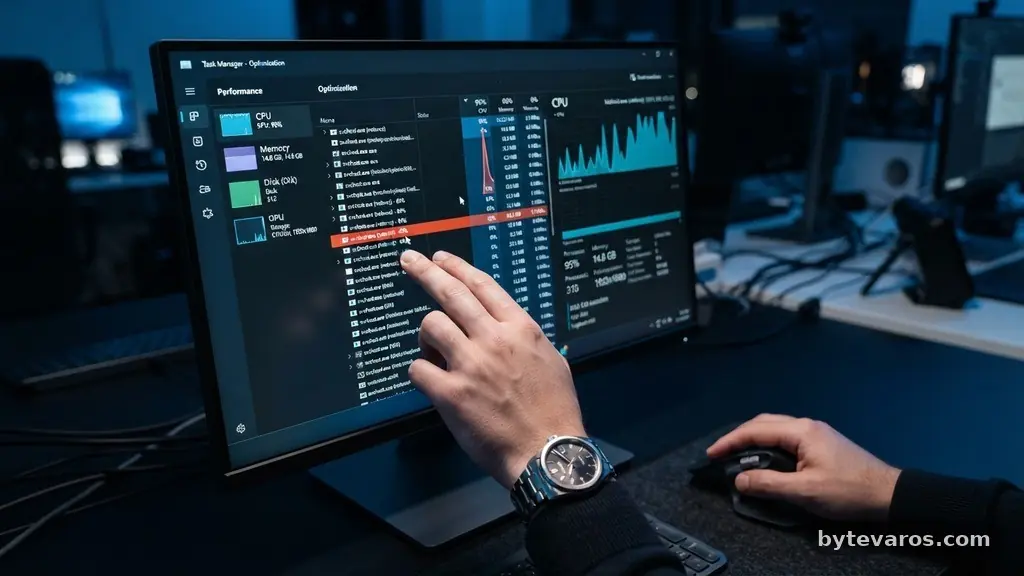
The primary method for identifying Background Apps That Quietly Consume Your Computer’s Resources involves using built-in system tools. On Windows, the Task Manager is your primary dashboard for monitoring real-time activity.
You can access it by pressing Ctrl + Shift + Esc or right-clicking the taskbar. Once open, click the “Processes” tab to see a list of everything currently active.
Focus your attention on the columns labeled CPU, Memory, and Disk. If you see a process consistently consuming a high percentage of your processor power despite you not actively using that application, it is a prime candidate for investigation. You should also check the “Startup” tab within the Task Manager.
This area lists every program that launches the moment you turn on your machine. Many of these apps serve little purpose during your daily workflow and only serve to increase idle resource consumption.
Using macOS Activity Monitor
If you are a Mac user, the equivalent tool is the Activity Monitor, which provides granular data on how macOS kernel tasks and user applications interact. You can find this by pressing Command + Space and typing “Activity Monitor” into the Spotlight search bar. Once the window appears, select the “CPU” tab to view which processes are demanding the most power.
Look for the “% CPU” column to see which apps are keeping your processor busy. If a process shows a high energy impact, your battery life and system speed are likely suffering because of it.
You can also monitor “Memory” to see if specific applications are hoarding RAM, which often leads to system-wide sluggishness. Identifying these specific culprits is the first step toward optimizing your macOS experience.
Understanding System Overhead
System overhead refers to the resources required by your operating system and its essential services to keep your computer running. While some background processes are mandatory, many others are secondary services that you can safely disable. High system overhead often occurs when too many third-party apps attempt to update, sync, or index files simultaneously.
When your computer feels like it is working hard even when you are just staring at the desktop, your system is likely experiencing significant background process contention. This happens when multiple applications fight for the same limited hardware resources.
By systematically reviewing these processes, you can distinguish between critical system tasks and unnecessary bloatware. Reducing this overhead is key to maintaining a responsive environment during heavy workloads.
Analyzing Startup Programs
Startup programs are perhaps the most common reason for a sluggish computer experience right after boot. Many software installers automatically add themselves to your startup list without explicit permission. These apps sit in your system tray, consuming RAM and CPU cycles from the very first second your computer is on.
You should audit these lists at least once every few months to see what has crept in. On Windows, the Task Manager’s Startup tab allows you to right-click and disable any item you do not recognize or need immediately.
For macOS users, navigate to System Settings, select General, and then click Login Items to manage these auto-starting applications. Removing unnecessary items here significantly lightens the load on your hardware.
Comparing Resource Impact
Different types of software have varying levels of resource consumption. Some apps are designed to be efficient, while others are notorious for their heavy footprint. The table below outlines common categories of background software and their typical impact on your hardware.
| Application Category | Typical Resource Impact | Common Behavior |
|---|---|---|
| Cloud Sync Clients | High (Disk/Network) | Continuous file indexing and syncing. |
| Browser Extensions | Moderate (RAM) | Each tab or script adds to total usage. |
| Anti-Malware Scans | High (CPU/Disk) | Periodic background integrity checks. |
| Update Checkers | Low (Intermittent) | Quick pings for software version checks. |
| Communication Tools | Moderate (RAM/CPU) | Maintaining active connection to servers. |
Understanding this breakdown helps you prioritize which apps to investigate first. For instance, a cloud storage client might be necessary, but if it is constantly indexing thousands of small files, it will cause significant disk thrashing. Adjusting the settings within these apps—such as limiting sync speeds or excluding folders—is often more effective than simply closing them.
Identifying Hardware Bottlenecks
Hardware bottlenecks occur when your system’s components, such as your RAM or CPU, cannot keep up with the demands of the software. When you are identifying Background Apps That Quietly Consume Your Computer’s Resources, you are essentially looking for the specific software that is triggering these bottlenecks. If your RAM usage is constantly hovering near 90% or higher, your computer will begin to use your hard drive as temporary memory, which is significantly slower.
A slow hard drive or a lack of available RAM will make even the simplest tasks feel tedious. By identifying and terminating these background processes, you free up the necessary headroom for your primary applications to run smoothly.
You can find more information on managing system resources through official documentation like the Microsoft performance optimization guide for Windows. Addressing these bottlenecks ensures your hardware operates within its intended design parameters.
Common Indicators of Resource Drain
Beyond just checking numbers in a monitor, your computer often provides physical clues that it is struggling. A loud, spinning cooling fan is a classic sign of high CPU usage caused by background apps. If your fans are constantly running at maximum speed while you are only browsing the web, something else is likely working hard in the background.
Another clear indicator is a sluggish response time when you click a menu or switch between windows. If your mouse cursor stutters or apps take several seconds to open, your system is likely waiting for resources to become available.
You may also notice that your laptop’s battery drains much faster than it did when the device was new. These symptoms are your system’s way of telling you that it is being overwhelmed by unnecessary background activity.
FAQ: Managing System Resources
How do I know if a process is safe to terminate?
Most processes belonging to your user account are safe to close, but you should avoid ending anything labeled as a “System” or “Service” process unless you know exactly what it does. If you are unsure, search the process name online to see if it is a known component of your OS or a specific third-party app.
Should I disable all startup programs?
You do not need to disable everything, but you should aim to keep only the absolute essentials, such as your audio drivers or security software. Most other apps, like chat clients or update checkers, can be launched manually whenever you actually need to use them.
Why does my RAM usage stay high even after closing apps?
Modern operating systems use a technique called caching to keep frequently used data in your RAM for faster access. This is generally a good thing, as it makes your computer feel faster, but it can look like high usage in a monitoring tool. You only need to worry if your system is actively swapping data to the disk.
Can background apps cause my internet to slow down?
Yes, especially if those apps are constantly syncing files, downloading updates, or streaming content in the background. Check your Task Manager or Activity Monitor for network usage columns to see which specific applications are consuming your bandwidth.
How often should I check for background resource hogs?
A quick check once every month is usually sufficient for most users. If you notice your computer suddenly performing poorly, that is the best time to open your monitoring tools and see if a specific app has started acting up.
Conclusion
Taking control of your system’s performance is a rewarding process that pays off every time you sit down to work. By regularly identifying Background Apps That Quietly Consume Your Computer’s Resources, you ensure that your hardware remains efficient and responsive for years to come. You don’t need to be a technical expert to notice when your machine is struggling; the signs are usually visible in your task manager or through physical indicators like fan noise and battery life.
Start today by opening your monitoring tools and looking for the top three consumers of your CPU and memory. Terminate the ones you do not recognize or need, and adjust the startup settings for any apps that shouldn’t be launching on their own.
Once you start identifying Background Apps That Quietly Consume Your Computer’s Resources, you will find it much easier to keep your machine running exactly the way you want it. Feel free to explore your system settings and see what you can optimize for a faster, quieter, and more efficient computing experience.