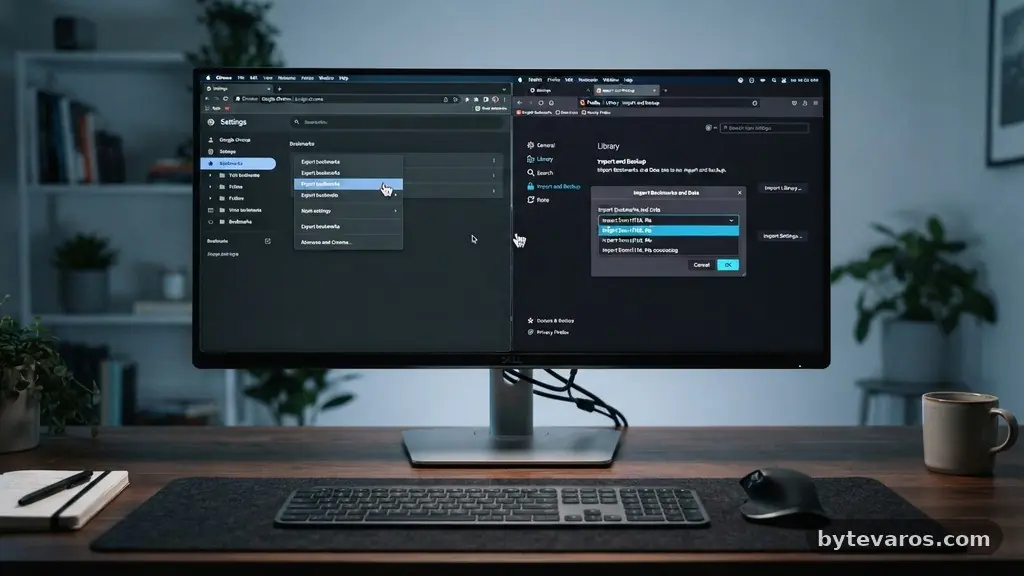
Learning the process of moving Browser Bookmarks Between Different Browsers Without Losing Them is a simple task that saves you hours of manual re-linking. Whether you are switching to a faster engine or testing a new privacy-focused tool, your collection of saved sites doesn’t need to be left behind.
By exporting your data into a standard file format and importing it into your new environment, you ensure your digital workflow remains entirely intact. This article explains the technical steps required to secure your history, manage your data transition, and ensure that your transition between applications is as smooth as possible for your daily web browsing.
Understanding the Export and Import Mechanism
The core secret to moving Browser Bookmarks Between Different Browsers Without Losing Them lies in the universal HTML file format. Most modern web browsers, including Google Chrome, Mozilla Firefox, and Microsoft Edge, use this standard to bridge the gap between competing software architectures.
When you choose to export your bookmarks, the browser creates a text-based file that contains the names, URLs, and folder structures of your saved pages. This file acts as a portable container that any other major browser can read and interpret.
You don’t need specialized software to perform this operation, as the functionality is built directly into the browser settings menu. Once the file is saved to your local drive, you simply open the destination browser and select the import option.
The destination browser then parses the HTML code and reconstructs your bookmark folders exactly as they existed in the original application. This system is highly reliable because it avoids proprietary data formats that might otherwise lock you into a single ecosystem.
Exporting Bookmarks from Google Chrome
Google Chrome remains the most popular browser globally, and its export process is remarkably straightforward for users who are ready to migrate. You start by clicking the three-dot menu icon in the top right corner of the window.
From there, navigate to the Bookmarks and Lists section, then select the Bookmark Manager. Inside the manager, there is another menu icon that provides the option to export your bookmarks to a file.
Saving this file to your desktop or a designated folder in your documents is the safest way to ensure you can find it later. Many users prefer to rename the file with the current date, such as “Bookmarks_Backup_2024,” to keep track of their various archives.
Once the file is exported, it becomes a static snapshot of your web collection. You can keep this file as a long-term backup in case of future browser crashes or accidental deletions.
Importing Your Data into Microsoft Edge
Microsoft Edge is built on the same Chromium foundation as Chrome, which makes moving Browser Bookmarks Between Different Browsers Without Losing Them exceptionally fluid. To import your data, open the Edge settings menu and look for the Profiles tab.
Within this section, select the Import browser data option. You will see a list of available sources, including the option to upload a specific HTML file.
After you select the file you exported earlier, Edge will automatically process the entries and place them in a new folder labeled “Imported.” You can then drag and drop these items into your main bookmarks bar or organize them into existing folders.
The metadata, including the original favicon and the specific URL path, is preserved during this transfer. This process effectively clones your previous browsing environment into the new interface without requiring any manual entry of web addresses.
Managing Bookmarks in Mozilla Firefox
Mozilla Firefox handles bookmarks through a slightly different interface, utilizing a library system that keeps your data organized. To export your collection, you should press Ctrl+Shift+O to open the library window.
From the top toolbar, select the Import and Backup menu. Choosing “Export Bookmarks to HTML” will generate the file needed for your cross-browser migration.
If you are importing data into Firefox, the process is equally simple using the same Import and Backup menu. You can select “Import Bookmarks from HTML” and navigate to the file on your computer.
Firefox is known for its robust handling of complex folder hierarchies, meaning even if you have hundreds of saved links, the structure will remain intact. This reliability is why many power users prefer Firefox for managing extensive research collections that span several years of browsing.
Utilizing Browser Synchronization for Long-Term Safety
While manual exports are excellent for moving between different applications, browser synchronization provides a continuous backup solution. Most modern browsers offer cloud sync features that keep your bookmarks updated across all your devices, such as your laptop, desktop, and smartphone. When you sign in to your browser account, your data is stored on secure servers maintained by the browser developer.
This method is highly effective for those who switch between computers frequently or use multiple devices throughout the day. However, relying solely on cloud sync can be risky if you decide to change browser brands entirely.
For a comprehensive strategy, you should still perform an occasional manual export to an HTML file. You can read more about data privacy standards and how your information is handled by reviewing the official guidance on data security provided by regulatory bodies.
Comparing Browser Migration Features
Different browsers offer varying levels of ease when it comes to importing data from competitors. Some browsers, like Brave or Vivaldi, are designed to pull information directly from other installed applications on your computer without the need for an intermediate file. This direct import feature is a major time-saver for users who have multiple browsers installed on the same machine.
The following table summarizes the primary methods for managing your bookmark data across the most popular platforms available today.
| Browser | Primary Export Format | Import Capability |
|---|---|---|
| Google Chrome | HTML File | Direct & HTML |
| Microsoft Edge | HTML File | Direct & HTML |
| Mozilla Firefox | HTML File | Direct & HTML |
| Safari | HTML/Plist | HTML/Plist |
Common Troubleshooting During the Transfer
Even with the best tools, you might encounter minor hurdles when moving Browser Bookmarks Between Different Browsers Without Losing Them. One common issue is that the imported bookmarks might appear in a hidden folder or at the bottom of your list instead of on the main bar.
Simply open your bookmark manager and look for a folder usually titled “Imported” or “From Chrome/Firefox.” You can then move these files to your preferred location by dragging them into the main directory.
Another issue involves duplicate bookmarks if you have performed multiple imports over time. Most browsers do not automatically deduplicate your list, meaning you might end up with two or three copies of the same site.
You can manually delete these duplicates or use a browser extension designed to clean up your link collection. Keeping your bookmarks tidy prevents your browser from slowing down when it loads your saved links upon startup.
Best Practices for Bookmark Organization
Maintaining a clean bookmark structure is essential once you have successfully transferred your data. Start by creating a logical folder system based on your specific needs, such as “Work,” “Research,” “Travel,” or “Finance.”
Using clear, descriptive names for your folders helps you locate information instantly without scrolling through a massive list. You should also consider using a bookmark manager extension if your collection grows to include hundreds of items.
* Regularly prune dead or broken links to keep your list functional.
* Use sub-folders to categorize complex projects into smaller, manageable parts.
* Update your bookmark backup file at least once every three months.
* Take advantage of the “Bookmarks Bar” for your most frequently visited sites.
* Remove favicon-only bookmarks that you no longer recognize or use.
Following these practices ensures that your digital library remains an asset rather than a cluttered mess. By keeping your organization consistent, you make the task of moving Browser Bookmarks Between Different Browsers Without Losing Them much easier the next time you decide to switch software.
Frequently Asked Questions
Can I lose my passwords when moving bookmarks?
No, bookmarks and passwords are handled as separate data entities. Exporting your bookmarks via an HTML file does not include your saved login credentials or personal profile information.
Is it safe to store my bookmarks in an HTML file?
Yes, an HTML file is a plain text document that contains only the names and URLs of your saved sites. It does not contain sensitive data like passwords, credit card numbers, or private browsing history.
What happens if I have folders within my bookmarks?
The HTML export process is designed to preserve your folder hierarchy perfectly. When you import the file into your new browser, all your sub-folders and nested categories will appear exactly as they were in the original application.
Do I need to be online to import bookmarks?
No, the import process is entirely local. Once you have saved the HTML file to your computer, you can import it into any browser without an internet connection.
Can I import bookmarks from a mobile browser?
Most mobile browsers do not allow you to export directly to an HTML file. You should sync your mobile bookmarks to the desktop version of that same browser, then perform the export from your computer to get the file you need.
Closing Thoughts on Browser Transitions
Successfully moving Browser Bookmarks Between Different Browsers Without Losing Them is a manageable process that gives you complete control over your digital environment. By utilizing the standard HTML file format, you ensure that your hard-earned research and favorite websites remain accessible regardless of which software you choose to run. Remember that your data is your own, and taking a few minutes to back up your links provides peace of mind during any technical transition.
If you follow the steps outlined, you will find that switching browsers is a minor adjustment rather than a major disruption. Stay organized, keep your backups current, and enjoy the flexibility of exploring new tools that better suit your browsing habits.