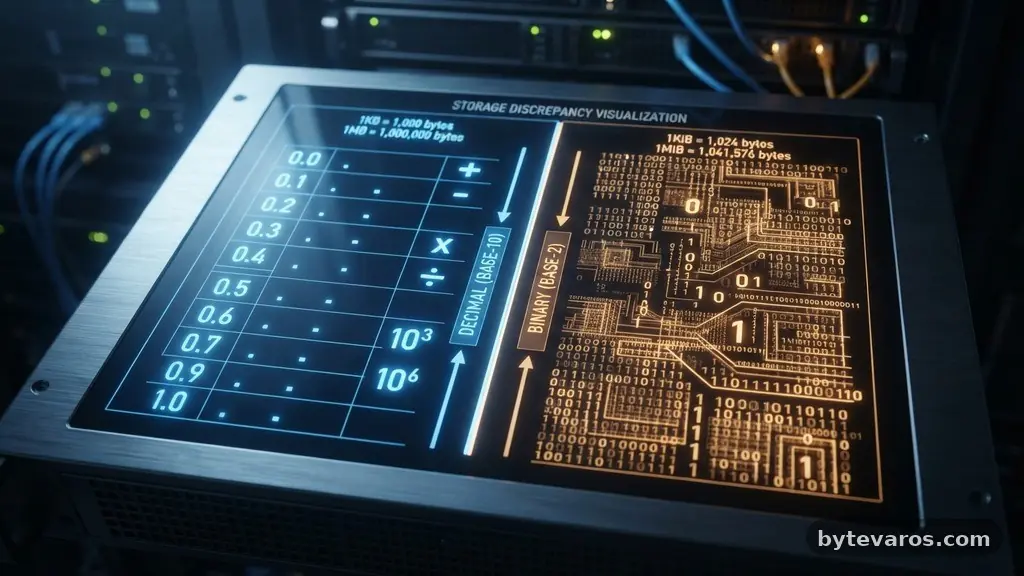
When you notice that your computer shows different storage space than your files actually use, it is easy to assume something is broken or that a virus is eating your data. In reality, this discrepancy is a fundamental part of how modern operating systems manage digital information. From the way storage is measured to the invisible files needed to keep your machine running, there are logical technical reasons behind these missing gigabytes.
By understanding these underlying processes, you can stop worrying about phantom data and start managing your drive capacity with confidence. This exploration will clarify why these numbers diverge and how you can reclaim control over your digital environment.
The Core Reason: Binary vs. Decimal Measurement
The most common reason users experience a discrepancy in reported storage is the difference between how storage manufacturers and operating systems calculate space. Hard drive and solid-state drive manufacturers typically use the decimal system, where one gigabyte is exactly 1,000,000,000 bytes.
Computers, however, operate using binary logic, where one gigabyte is defined as 1,073,741,824 bytes. This fundamental difference means that a drive sold as 500 GB will appear to have less capacity once formatted and mounted in an operating system.
When you multiply the manufacturer’s rating by the binary conversion factor, you immediately lose about 7% of the advertised space. This isn’t a loss of data or a marketing scam; it is simply a linguistic difference in how we define a “gigabyte.”
While macOS has moved toward using decimal values to show storage, Windows continues to use binary values, which often creates confusion for users moving between systems. You are not losing space; you are just seeing the same amount of capacity expressed in two different mathematical languages.
Hidden System Files and Virtual Memory
Your operating system requires several large, hidden files to function correctly, which often do not show up in your standard file explorer view. Files like pagefile.sys act as an extension of your physical RAM, allowing the computer to store data when your memory is full.
Similarly, hiberfil.sys is created to save the state of your open applications when you put your computer into hibernation mode. These files can easily consume several gigabytes of space, yet they remain invisible to the average user trying to calculate their folder sizes.
These system files are essential for stability, but they are not the only culprits behind the missing space. Shadow copies and system restore points also operate in the background, creating snapshots of your files to protect you from accidental deletions or corrupted updates.
Because these files are protected by the operating system, they are frequently excluded from manual folder size calculations. If you are curious about the technical standards behind these file systems, you can check the documentation at the Microsoft Learn file systems overview for a deeper look at how these structures interact.
The Role of Cluster Size and Allocation Units
Every file on your drive is stored in small chunks called clusters or allocation units. The size of these clusters is determined during the formatting process, and they dictate how efficiently space is used.
If your cluster size is set to 4 KB, even a tiny file that is only 1 KB in size will occupy the full 4 KB cluster. This creates “slack space,” where the difference between the actual file size and the occupied cluster size is effectively wasted.
If you have thousands of small files, this slack space can add up to hundreds of megabytes or even gigabytes of “missing” capacity. This is a trade-off between performance and efficiency; larger clusters can speed up read and write times for massive files but increase the wasted space for small ones.
Most modern file systems, such as NTFS for Windows or APFS for Apple, attempt to balance this automatically. However, understanding that your drive is often “fuller” than your files suggest is a direct result of this block-based storage architecture.
Master File Tables and Metadata Overhead
A file system does more than just store your photos and documents; it maintains a complex map of where everything is located on the physical drive. This map is known as the Master File Table (MFT) in NTFS, or a similar catalog structure in other formats.
The MFT tracks the location, size, permissions, and creation dates of every single file on your partition. Because this table itself is a file, it occupies space on the disk that is not counted toward your user-accessible storage.
This metadata overhead scales with the number of files on your drive. If you have a massive directory containing millions of tiny items, the index required to keep track of them becomes significantly larger.
This is why you might see a discrepancy between the sum of your folder sizes and the total used space reported by the system. The file system overhead is the “cost of doing business” for a computer that needs to locate your data instantly whenever you click a file.
Disk Fragmentation and Wear Leveling
Physical hard drives and solid-state drives (SSDs) manage data placement in ways that often lead to internal inefficiencies. On traditional spinning hard drives, disk fragmentation occurs when files are split into non-contiguous pieces across the disk platters.
While modern systems are better at managing this, the act of moving and storing these fragments requires additional tracking data. This fragmentation doesn’t necessarily hide space, but it can make the disk appear to struggle with capacity management if the drive is nearly full.
For SSDs, the process is different but equally important: wear leveling. SSDs must move data around to ensure that no single memory cell wears out faster than others. This background movement requires a reserve of hidden space on the drive that the operating system cannot touch.
This “over-provisioning” is intentionally kept hidden from the user to maintain the drive’s longevity and performance. When you see your storage space fluctuating, it is often the drive controller performing these essential maintenance tasks in the background.
Comparing File Systems and Their Impact
Different operating systems manage their storage differently, which can lead to variations in how much space is “used” on the same physical hardware. Some systems use compression or deduplication features that make files appear smaller than they are, while others might reserve large chunks of space for future expansion. The following table highlights some of the common factors that contribute to the difference between reported storage and actual file consumption.
| Factor | Impact on Storage | Visibility |
|---|---|---|
| Binary Conversion | High (approx. 7%) | Hidden |
| System/Swap Files | Moderate (GBs) | Hidden/Protected |
| Cluster Slack Space | Low to Moderate | Invisible |
| Partition Metadata | Low | Invisible |
Each of these factors contributes to the gap you see when checking your drive properties. While some of these are fixed, others, like cluster slack, depend heavily on your specific usage patterns. Understanding these categories helps you realize that your computer isn’t “losing” data; it is merely performing the complex accounting required to keep your system operational.
Partition Tables and Reserved Capacity
Before a drive can store any of your files, it must be initialized with a partition table. This table defines the boundaries of your disk and tells the computer how to access the various sections of the drive.
This structure is essential for booting your operating system and managing multiple drives, but it also takes up a small amount of physical space on the disk. While this is usually negligible for large modern drives, it remains a permanent fixture of your storage architecture.
Beyond the partition table, some operating systems reserve a percentage of the disk for emergency recovery, system logs, or crash dumps. This is a safety net designed to ensure that if something goes wrong, the computer has enough room to write diagnostic information or boot into a recovery environment.
You might find that your computer shows different storage space than your files actually use simply because the system has set aside this safety buffer. It is a protective measure that you will be glad exists if your system ever experiences a critical failure.
Common Indicators of Storage Discrepancies
If you are trying to find where your space has gone, it helps to know what to look for beyond just the total number. Many users report that their disk appears full, yet they cannot find any large folders or files.
This is often because the space is being consumed by thousands of tiny, hidden files or system-level processes that are not included in a standard “select all and check properties” scan. This is where specialized disk analysis tools become helpful.
* System Restore Points: Old snapshots that accumulate after Windows updates.
* Temporary Cache Files: Browser data and installer files left behind by software.
* Log Files: Diagnostic text files that can grow significantly if an app is crashing.
* Hibernation Files: Large files that map your RAM to your disk for fast startup.
* Virtual Machine Disks: Large containers that hold entire operating systems inside a single file.
By using a disk usage analyzer, you can visualize these hidden areas and see exactly which categories are eating up your capacity. These tools often run with elevated permissions, allowing them to peek into the system directories that standard file explorers usually skip. This visual breakdown is usually enough to clear up the confusion regarding why your computer displays a specific storage total.
Frequently Asked Questions
Why does my 500GB drive only show 465GB of space?
This is primarily due to the difference between the decimal definition used by manufacturers (1,000 bytes per KB) and the binary definition used by Windows (1,024 bytes per KB). When you convert 500 billion bytes into binary gigabytes, you arrive at approximately 465 GB.
Can I delete system files like pagefile.sys to get space back?
You can technically change the size of the pagefile or disable it, but this is generally not recommended. If your computer runs out of physical RAM, it will have nowhere to store overflow data, which can lead to system crashes and application errors.
What is the best way to see what is taking up space?
Use a dedicated disk space analyzer tool, which scans your drive and creates a visual map of your storage usage. These tools are much more effective than manually clicking through folders, as they can identify hidden system files and large, overlooked directories.
Does formatting a drive help reclaim lost space?
Formatting will reset the drive and clear out all files, which can remove temporary data and restore the drive to its “clean” state. However, the difference caused by binary vs. decimal measurement and the space required for the file system will remain, so you will never see the full advertised capacity.
Why does my storage usage jump up and down?
This is usually caused by the operating system creating and deleting temporary files, such as cache, logs, or automatic updates. It is a normal part of system maintenance and usually indicates that your computer is effectively managing its temporary data requirements.
Final Thoughts
The frustration of seeing storage numbers that don’t add up is a common experience for almost every computer user. As we have explored, the discrepancy is rarely a sign of a malfunctioning drive; rather, it is a combination of mathematical definitions, essential system architecture, and background maintenance processes. By recognizing that factors like binary measurement, hidden system files, and cluster slack play a major role in your reported capacity, you can better manage your expectations.
Your computer shows different storage space than your files actually use because it is working hard to maintain stability and performance in the background. If you feel your space is genuinely disappearing, consider using a disk analysis tool to identify the specific culprits, and you will likely find the missing data is simply doing its job behind the scenes.