When you click an icon and watch the window flicker into existence only to vanish a second later, you are dealing with a classic case of silent application failure. Fixing Software That Opens Briefly and Then Closes Without an Error is often a matter of identifying which background dependency failed to initialize or which permission block prevented the process from staying active.
While it feels like a total mystery, the operating system usually keeps a detailed log of why these abrupt closures happen. By methodically checking your system files and runtime environments, you can restore stability to your favorite programs without needing to perform a full system wipe.
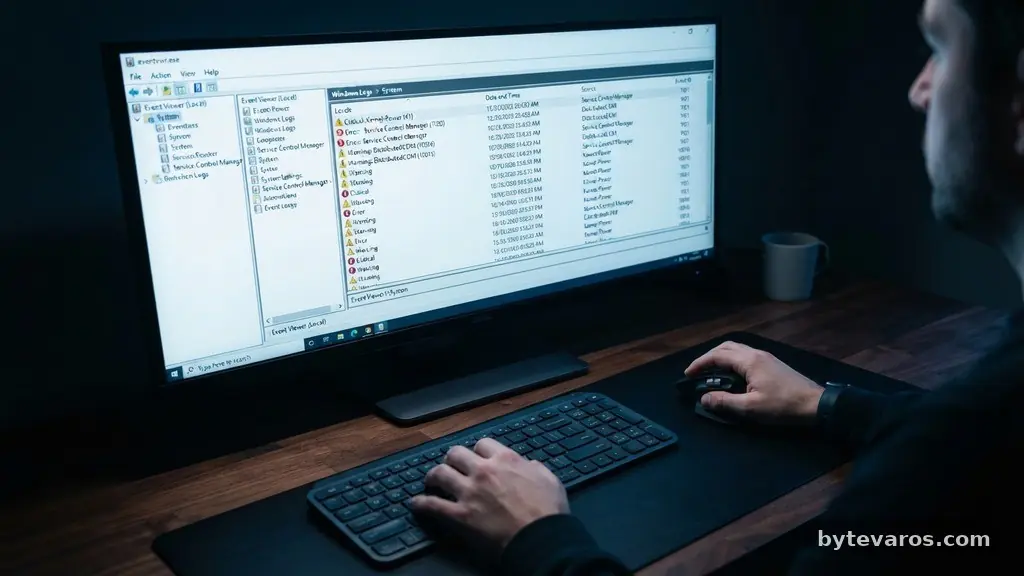
Consulting the Windows Event Log
The first step in diagnosing silent crashes is looking at the history recorded by your operating system. Windows keeps a detailed record of every application crash, even if no dialogue box appears on your screen to alert you.
You can access this data by typing “Event Viewer” into the search bar and opening the application. Once it loads, expand the “Windows Logs” folder and select the “Application” tab to see a chronological list of events.
Look for entries marked with a red “Error” icon that align with the timestamp of your attempted launch. These logs often contain a specific code, such as an exception code or a faulting module name, which points directly to the source of the trouble.
If you see a reference to a specific DLL file, you have likely found the culprit behind your application crashes. Copying the text from the “General” tab and pasting it into a search engine can often lead you directly to a known fix for that specific error code.
Verifying System Integrity
Sometimes, the files necessary to run your applications become corrupted due to unexpected power losses or improper updates. Windows provides a built-in utility known as the System File Checker to scan for these irregularities and repair them automatically.
To run this, open your Command Prompt as an administrator and type “sfc /scannow” before hitting enter. This process may take several minutes, but it is highly effective at replacing damaged system files with clean versions from the cache.
If the scan finds and repairs files, you should restart your computer immediately to ensure the changes take effect. If the scan reports that it found corrupt files but could not fix them, you may need to use the DISM (Deployment Image Servicing and Management) tool to repair the Windows system image itself. Using these tools is a standard procedure for resolving underlying stability issues that prevent software from launching correctly.
Updating Graphics and Runtime Drivers
A common, yet frequently overlooked, cause for software failing to launch is an outdated graphics driver. Many modern applications, especially games and resource-heavy design tools, require specific features from your GPU to initialize their interface.
If your driver is too old, the application may attempt to access a feature that doesn’t exist, causing it to close instantly to prevent a system crash. Visit your hardware manufacturer’s website to perform a graphics driver update to ensure your hardware is fully compatible with your software.
Beyond graphics, many Windows applications rely on the Microsoft Visual C++ Redistributable packages to function. If these packages are missing or corrupted, the program will terminate the moment it tries to call a function from these libraries.
You can check which versions are installed by looking in your “Apps & Features” menu. If you suspect an issue, downloading the latest supported versions directly from Microsoft’s official support pages can often resolve the “brief open and close” behavior.
Managing Administrative Privileges
Certain programs require elevated access to modify temporary folders or write to specific registry keys during their startup sequence. If a standard user account lacks these permissions, the application might attempt to start, realize it cannot perform its necessary setup tasks, and close itself down. You can test this theory by right-clicking the application’s shortcut or executable file and selecting “Run as administrator.”
If the software launches successfully with these elevated rights, you have identified a permission conflict. You can make this change permanent by right-clicking the file, selecting “Properties,” and navigating to the “Compatibility” tab.
Check the box labeled “Run this program as an administrator” and click “Apply.” This ensures that the software always has the necessary clearance to access the system resources it requires to stay open.
Testing Compatibility Mode Settings
Older software is frequently designed for previous versions of Windows, leading to conflicts with modern security and memory management features. If you are trying to run a legacy program, it may struggle to initialize in the default environment of your current operating system.
Windows includes a compatibility mode that mimics the environment of older versions like Windows 7 or Windows 8. To test this, right-click the application icon and select “Properties” followed by the “Compatibility” tab.
Check the box that says “Run this program in compatibility mode for” and select a previous version of Windows from the dropdown menu. You should also consider checking the “Disable full-screen optimizations” option, as this can sometimes prevent conflicts with the desktop window manager.
After applying these settings, try launching the software again to see if it remains open. This simple toggle is often the difference between a functional program and one that crashes on contact.
Identifying Conflicting Background Processes
Sometimes your software is perfectly healthy, but it is being blocked or terminated by another process running in the background. Antivirus software, in particular, may flag an application as suspicious and kill the process before it fully loads.
You can perform a “clean boot” to determine if a third-party service is interfering with your program. A clean boot involves disabling all non-Microsoft services and startup items through the System Configuration utility.
If the software opens correctly during a clean boot, you know that one of the disabled items was causing the conflict. You can then re-enable the services one by one to isolate the specific culprit. This method is also useful for identifying conflicts with overlay software, such as game launchers or performance monitoring tools that inject code into other processes.
Analyzing Dependencies and Corrupted Profiles
Advanced users might look toward a dependency walker to determine if a program is failing because it cannot locate a specific library. These utilities show you exactly which files a program is trying to load during its startup sequence.
If you see a “File Not Found” warning for a specific dependency, you know exactly what needs to be reinstalled or repaired. This is particularly useful when you have recently moved or copied an application from another directory.
Another possibility is user profile corruption, where the local configuration settings for that specific user have become unreadable. You can test this by creating a new, temporary user account on your machine and attempting to launch the software from there.
If the program works perfectly on the new account, the issue is isolated to your primary user profile. In such cases, you may need to reset or clear the application’s configuration files located in your AppData folder.
Comparison of Troubleshooting Methods
When your software refuses to stay open, it is helpful to understand which methods are most likely to yield results based on the type of application you are running.
| Troubleshooting Method | Best Used For | Difficulty Level |
|---|---|---|
| SFC /scannow | System-wide instability or file corruption | Easy |
| Run as Administrator | Permission-blocked software | Very Easy |
| Graphics Driver Update | Games and graphic design tools | Moderate |
| Compatibility Mode | Legacy software and older games | Easy |
| Clean Boot | Conflicting background services | Hard |
Frequently Asked Questions
Why does my program close immediately after the splash screen?
This usually indicates that the program is failing to initialize a specific resource, such as a graphics driver or a required dynamic link library, during the final stage of its startup. It is often a sign that the software is missing a runtime dependency or lacks the permission to write to a configuration file.
Can corrupted configuration files cause this problem?
Yes, if the application attempts to load a user setting that has been corrupted, it may trigger an unhandled exception and close immediately. Deleting or renaming the configuration folder in your AppData directory often forces the application to create a fresh, working file upon the next launch.
Is it safe to use administrative privileges for every program?
You should only use elevated privileges when absolutely necessary, as it bypasses certain security protections designed to keep your system safe. If a program requires admin rights to function, it is usually because it needs to write to protected system directories, but you should ensure the software is from a trusted source before granting this access.
What if none of these steps fix the issue?
If you have tried all the standard fixes, the application itself might have a bug that is incompatible with your specific hardware configuration. In such cases, checking the developer’s support forums or looking for patch notes is the best next step to see if other users are reporting similar behavior.
Does a clean boot delete my personal files?
A clean boot does not delete any of your personal files or programs, but it does temporarily disable background services and startup items. It is a diagnostic tool meant to narrow down software conflicts and can be easily reversed by re-enabling the services in the System Configuration utility.
Resolving Your Application Issues
Fixing Software That Opens Briefly and Then Closes Without an Error is rarely about a single “magic bullet” setting. It is usually a process of elimination that involves checking your system’s integrity, ensuring your drivers are current, and isolating potential conflicts with other background services. By using the Event Viewer to gather clues and testing permissions or compatibility modes, you can usually identify the specific hurdle preventing your program from staying active.
Remember that patience is your best tool during this process. Start with the simplest solutions like administrative rights and move toward more complex system repairs as needed. If you follow these steps systematically, you will likely find your software running smoothly again in no time.